 ImgBrisk
Resize Image Online, Free and Private
Resize image files, JPG, PNG or WEBP, to exact pixels or by percentage. Your photo never leaves your device, with no upload, no signup and no watermark.
- Runs in your browser
- No upload
- No watermark
- Free, no signup
Drop an image here or click to uploadTap to choose a photo
JPG, PNG, WEBP or HEIC. Processed on your device. You can also paste (Ctrl+V).
How do I resize an image?
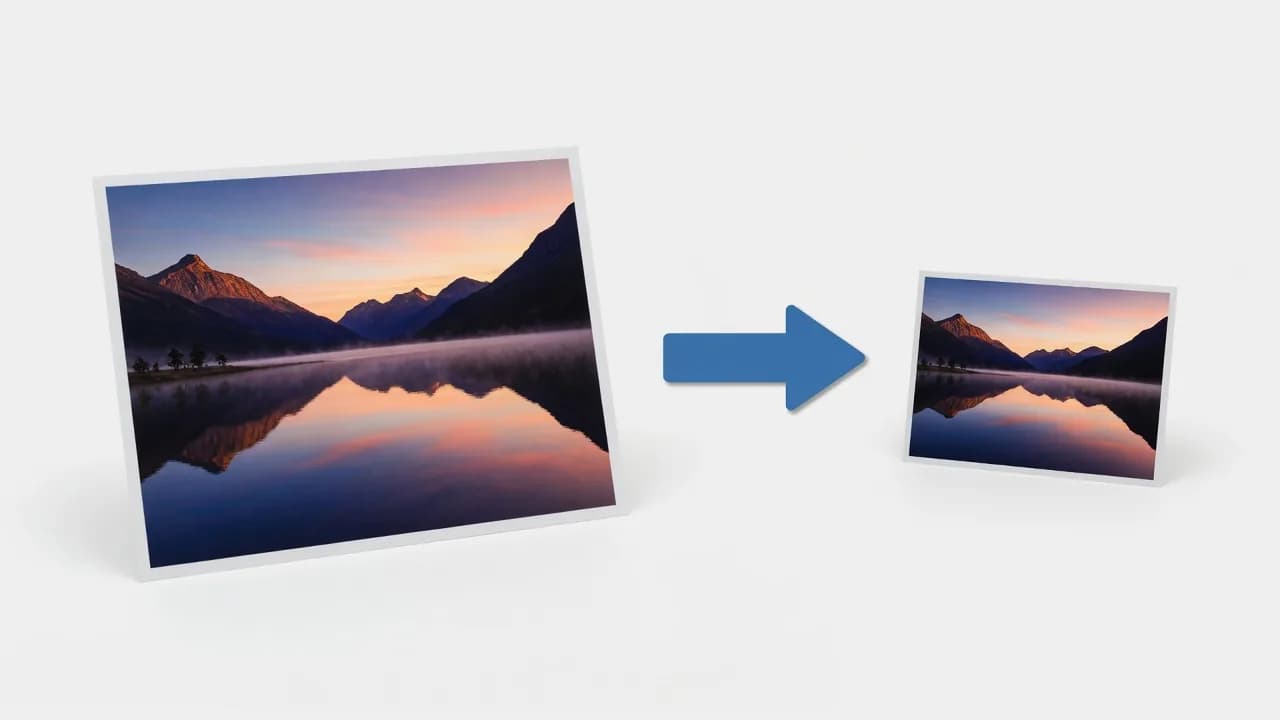
To resize an image, open it in ImgBrisk's free image resizer, type the width and height in pixels or pick a percentage, choose JPG, PNG or WEBP, click Resize, then click Download. The image is resized in your browser, so nothing is uploaded and there is no watermark or signup.
Resize an image in 4 steps
01
Add your image
Drop a JPG, PNG or WEBP file into the box, or click it to choose a file from your device.
02
Set the size
Type a width or a height in pixels, or click 25%, 50% or 75% to scale the picture. Keep Lock aspect ratio on to avoid stretching.
03
Choose format and quality
Pick JPG, PNG or WEBP under Output format. For JPG and WEBP, move the Quality slider as well.
04
Resize and download
Click Resize to see the new pixel size and file size, then click Download. Your original file is not changed.
Common image sizes in pixels
These pixel sizes are commonly used for each purpose. Platforms change their specifications, so check the platform's help page before you publish. Type the width and height from any row into the resizer.
| Use | Pixels | Ratio | Total pixels |
|---|---|---|---|
| Instagram square post | 1080 x 1080 | 1:1 | 1,166,400 |
| Instagram portrait post | 1080 x 1350 | 4:5 | 1,458,000 |
| Stories, Reels and Shorts | 1080 x 1920 | 9:16 | 2,073,600 |
| YouTube thumbnail | 1280 x 720 | 16:9 | 921,600 |
| Full HD wallpaper or slide | 1920 x 1080 | 16:9 | 2,073,600 |
| Website hero image | 1600 x 900 | 16:9 | 1,440,000 |
| Email inline image, example | 600 x 400 | 3:2 | 240,000 |
Why resize images?
Most reasons to resize image files come down to a few goals. For a website, you serve a picture at the size it is displayed, because a 4000 pixel photo shown in a 600 pixel column makes visitors download pixels they never see. Smaller images generally help pages load faster, which supports Core Web Vitals. Working only with JPG files? You can also resize a JPG on its own page.
For social media, you match the size a platform expects so it does not crop or recompress your picture in an unexpected way. For email, you shrink a photo so it fits in the message instead of arriving as a huge attachment. Upload forms often reject large files: resize image dimensions first, then use the image compressor if the file is still too big. Print shops ask for a pixel count that matches the paper size, so follow their requirements.
Resize image to specific pixels: the arithmetic
Every digital image is a grid of pixels, so width times height gives the total. A 1920 x 1080 image holds 2,073,600 pixels, and a 960 x 540 image holds 518,400. Halving both sides leaves a quarter of the pixels, which is why the 50% preset shrinks an image far more than the number suggests.
With Lock aspect ratio on, the resizer keeps the original width to height ratio. Type 800 as the width of a 4000 x 3000 photo and the height becomes 600. Turn the lock off only when you want to stretch or squash the picture on purpose.
- Same ratio as the original: lock the aspect ratio and change one side
- A different ratio, such as a square from a landscape photo: crop the image first, then resize
- Many photos at the same size: use the bulk resize tool instead of repeating the steps
Resize an image without losing quality
To resize image files without losing quality, go down in size and start from your sharpest original. A smaller image stays sharp because the resizer removes pixels you no longer need. Going up in size cannot create real detail, so an enlarged picture looks soft. Quality loss mostly comes from saving a lossy format at a low setting, not from resizing itself.
- Resize down from the largest original you have
- Keep Lock aspect ratio on
- Use PNG for screenshots and graphics
- Use JPG or WEBP at quality 80 to 90 for photos, a common rule of thumb
File still too big after resizing? Try the image compressor to cut the file size further.
Resize vs crop vs compress
Private by design: your images never leave your device
ImgBrisk processes images with your browser's built-in Canvas API. The file is handled on your own computer or phone. Nothing is sent to a server. Saved files have EXIF data and GPS location removed.
Check it yourself in 3 steps
- Open your browser's developer tools
- Go to the Network tab
- Use the tool: no upload request appears
Frequently asked questions
Is the image resizer free to use?
Yes. ImgBrisk is free, with no signup, no watermark and no daily limit. You can resize as many images as you like, and every tool runs inside your browser, so there is no server queue to wait in and no account to create.
Does resizing upload my photos to a server?
No. ImgBrisk lets you resize image files locally with the Canvas API in your browser, so your photo stays on your device. You can check this yourself: open the Network tab in your browser's developer tools while you resize, and you will see no image being sent.
How do I resize an image without stretching it?
Keep Lock aspect ratio switched on and change only the width or only the height. ImgBrisk calculates the other side so the proportions stay the same. Turn the lock off only if you need both numbers exactly and accept that the picture will look stretched or squashed.
How do I resize an image to a specific size in KB?
Resizing changes pixel dimensions, and the file size follows from that plus the format and quality. ImgBrisk does not aim for a set number of kilobytes. To get a smaller file, resize first, lower the Quality slider, or use the separate image compressor afterwards. Results depend on the image.
Which image formats can I resize?
You can add JPG, PNG and WEBP images and save the result as JPG, PNG or WEBP. Choose the output under Output format. PNG keeps full quality and has no Quality slider, while JPG and WEBP let you trade a little quality for a smaller file.
Does it reduce quality when I resize an image?
Making an image smaller keeps it looking sharp at the new size. Enlarging cannot add real detail, so it looks soft. Quality loss mostly comes from saving JPG or WEBP at a low Quality setting. As a rule of thumb, 80 to 90 works for many photos, but results depend on the image.
Can I resize an image on iPhone or Android?
Yes. Open ImgBrisk in Safari or Chrome, tap the upload box, choose a photo from your library or camera, set the size, tap Resize and then Download. The photo is processed on your phone, not on a server, so it works the same on iPhone and Android.
Is there a file size limit for resizing?
ImgBrisk sets no fixed file size limit, because nothing is uploaded. The practical limit is your device. Very large photos use a lot of memory while the browser redraws them, so an older phone may slow down or fail with a huge image. A desktop computer usually copes better.
More free image tools
HEIC to JPG
Convert iPhone HEIC photos to JPG in your browser.
HEIC to PNG
Convert HEIC and HEIF photos to lossless PNG.
HEIC to PDF
Turn HEIC photos into one PDF or one PDF per photo.
HEIC Viewer
Open a HEIC photo and read its EXIF details.
Bulk Resize
Resize many images at once, download as ZIP.
Crop Image
Crop freely or to 1:1, 4:3, 16:9 and 3:2.
Edit Image
Add text, draw and insert shapes.
Image Compressor
Reduce file size with a quality slider.
Resize JPG
Change JPG dimensions, output stays JPG.
Last updated: November 17, 2026. Reviewed by the ImgBrisk team.